
Publisher Insight
One News Story, Three Outputs: Article, Headline Image, and Branded Reel
The reporting can be shared across formats, while the headline, visual, and slide sequence each receive their own editorial attention. Here is how to organize that work.
Talk to SaraBiT Media
Discuss your newsroom workflow, search visibility, and publishing requirements with our team.
Quick answer
In brief
Prepare and approve the article first, create a headline image using the appropriate photo or frame, then build a short reel from the article’s key points. SaraBiT Media includes the article workspace, headline-image tools, and a programmatic Reel Maker. Each output still needs a review for accuracy, legibility, and context.
Use the article as the factual reference
Begin with the complete report: the central development, supporting details, source attribution, photos, and any uncertainty that readers need to understand. Confirm the byline, date, section, and relevant links. The visual team should work from this reviewed version rather than a separate summary copied from an earlier draft.
Consider a hypothetical local library reopening. The article might explain the reopening date, opening hours, changes to services, and the source of the announcement. The image and reel can highlight those details, but neither should add an unreported claim about facilities or public response.
Create a headline image suited to the story
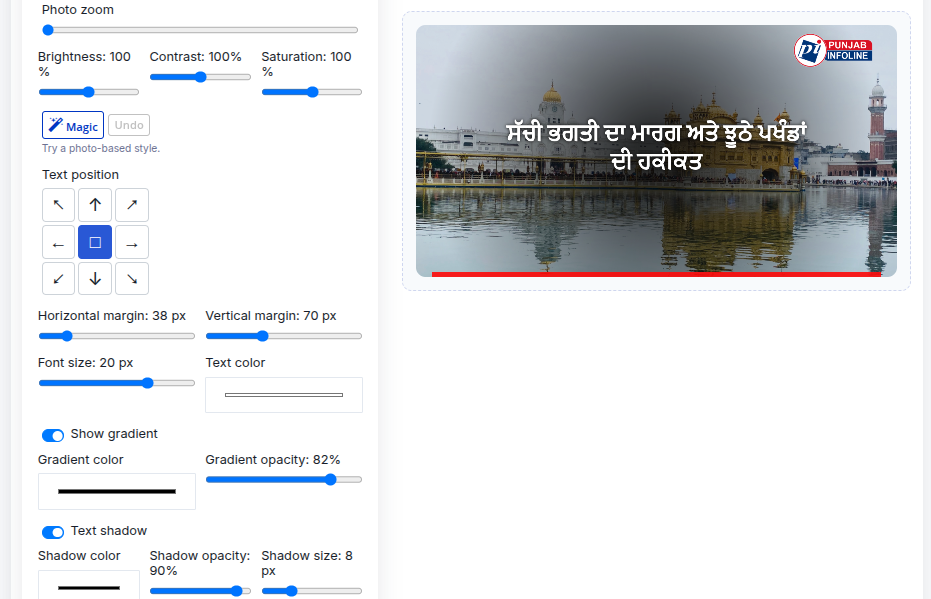
In the SaraBiT Media banner workflow, choose an uploaded news frame or a photo-based Logo Only layout. Set the banner headline, position the photo, and adjust the text and visual treatment while reviewing the preview. Save the finished banner as the story’s featured image when it is ready.
For the library example, a verified photo of the building may suit the headline image. Preserve the subject and avoid placing words across details needed to understand it. The banner headline can be shorter than the article headline, but it must retain the same meaning and any important qualifier.
Choose illustration and styling deliberately
SaraBiT Media also offers AI image generation for original illustrative visuals. That can be useful for a concept or explainer when a documentary photograph is not the intended format. Keep illustrations distinguishable from photographs of real events and follow your newsroom’s labelling policy.
The banner editor’s Magic control is a separate feature: it samples the uploaded photo in the browser and suggests adjustable styling. It does not use an AI model. For photo-based banners, preserve source files in the newsroom’s approved media storage; the banner workflow saves the finished composite as the featured image rather than retaining the source upload as a separate image.
Build the reel around a few essential facts
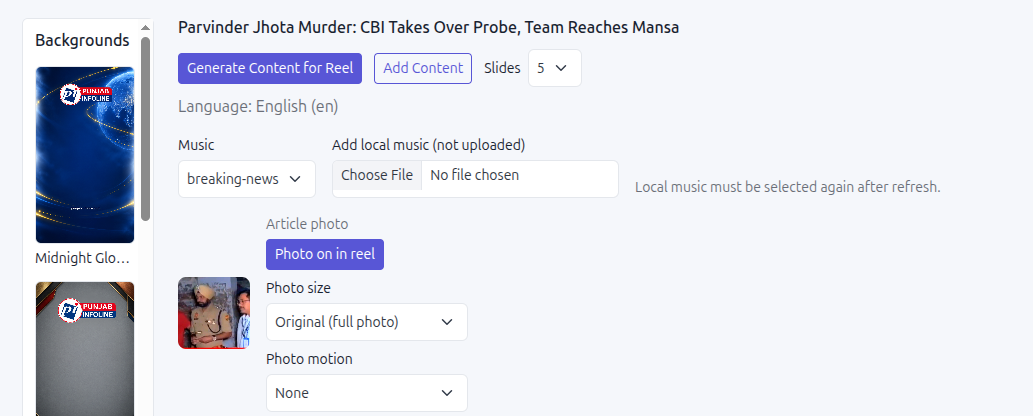
Choose a branded vertical background in the Reel Maker and prepare the slide text. Editors can write the slides or review an AI-assisted draft. Use the article photo if it helps, or choose a text-only presentation. Preview the wording, typography, colors, and motion before sharing.
For the same library story, the reel might introduce the reopening, explain confirmed opening hours, and point viewers to the full report for service details. This is a designed sequence assembled from selected content. It does not require a voiceover or generated video scenes, and it does not remove the need to review the story.
Keep publication and correction decisions explicit
Use a short handoff record identifying the article URL, approved headline image, reel file, reviewer, and intended channels. Check the actual outputs before distribution. The website image, social caption, and reel may have different display constraints, but their facts should agree.
If the source article changes, review every derivative output. Do not assume an already shared image or video updates automatically. Name an owner for correcting or withdrawing it, and explain material changes to readers when appropriate. A shared workflow is useful only when the team can keep its outputs consistent over time.
Evaluate the workflow with your own stories
Bring a routine local report, a breaking update, and an explainer to the demonstration. Use your logo, language, and typical photo quality. Ask an editor to make a correction and review how much work is needed to update each output.
Record the time spent on preparation, review, and final output across several examples. That gives you a practical basis for comparing the workflow with your current process. Avoid estimating savings from a polished sample alone; the product should be useful on the stories your newsroom produces every day.
How SaraBiT Media fits
SaraBiT Media brings story publishing, headline-image creation, AI illustration capabilities, and programmatic news reels into its publisher offering. A demonstration can show the current interfaces and confirm the modules, access, and rollout scope needed by your team.
Related Publisher Solutions
Move from research into the platform area most relevant to this guide.
More Publisher Guides
Browse related content on CMS selection, launch strategy, audience growth, and publishing operations.
Ready to Launch?
See one of your stories across three formats
Bring a published article, your branding, and a preferred language to a guided publishing-workflow demonstration.